Copyright © 2010-2026
Nagios Enterprises, LLC. All rights reserved.
Using The Monitoring Wizard
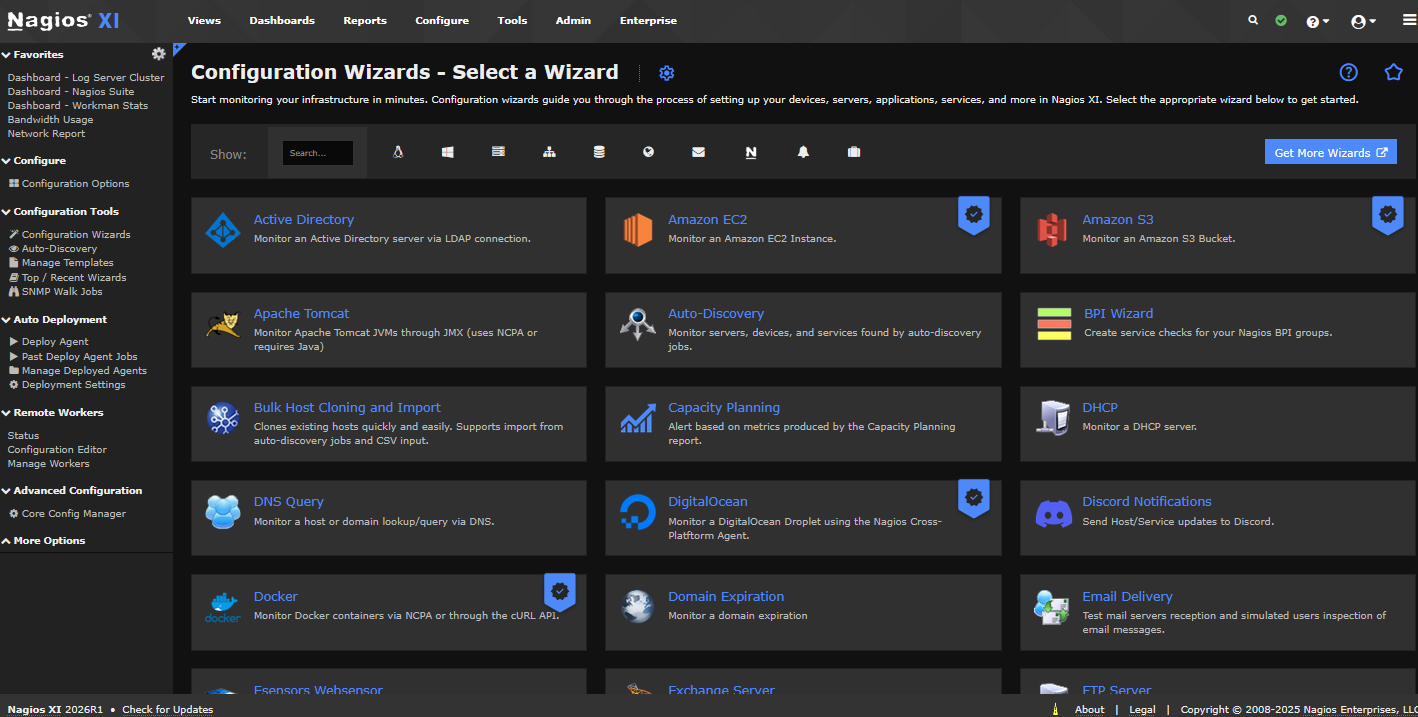
The Monitoring Wizards allow monitoring of new hosts and services to be set up easily. To access the monitoring wizard, select the Configure menu (at the top of the UI if you are using the Modern theme, or the gear icon in the lefthand menu if you are using Neptune), and click the Configuration Wizards link. This will allow users to select from a list of available wizards to easily create a new monitoring process. To set up a new monitoring process, select from the list of available wizards. This guide will demonstrate the Website configuration wizard.
After selecting the appropriate wizard, Nagios XI will ask for the relevant host information. This information will vary depending the type of monitor you're setting up. For this example the website monitor asks for the URL of the site to be monitored.

After entering in the relevant host information, the monitoring wizard will ask for the information relevant to the services being monitored for the selected host.

The wizard will then ask for the time increments for the service checks, followed by the Notification Settings page, which allows you to specify the circumstances and contacts for notifications.


After all settings in place, select the Apply Configuration button to verify and apply the settings to the monitoring engine.
To learn more about using the Nagios XI monitoring wizards, please review the document below:
Available Wizards
Nagios XI comes with standard set of monitoring wizards. Additional wizards can be obtained from the Nagios Exchange website.
Note: Installing new wizards requires administrative privileges. For new wizard installation instructions, see the documentation below.
Re-Configuring Monitored Elements
Users with advanced permissions have the ability to modify basic configuration settings for hosts and services. To configure a monitored element, go to the Home menu, and select service or host Details page. Select the link from the details table for either the host or service that you want to reconfigure.
Selecting the link for the host or service will being up it's details page. From this page, select the Configure tab. If this tab is not visible, it means that you do not have permissions to reconfigure the host or service. If you need to be able to, contact your Administrator for access to this feature.
This tab brings up options to either Reconfigure or Delete the host or service.

The Reconfigure page allows you to modify the host address, basic monitoring settings such as the increments of checks, and basic notification settings. More advanced configurations require access to the Core Config Manager and are covered in the Administrator's manual.
Deleting Monitored Elements
To delete monitored elements, access the Home page, and select the host or service Details page, depending on what element you want to delete. Select the link from the table on the Details page of the element that you want to delete. If you have privileges to delete elements, you'll see a Reconfigure tab.

Select the reconfigure tab, and then select link to Delete this host/service.
Important Note: Hosts can only be deleted once all of their dependent services have been deleted. If you encounter other problems deleting hosts or services contact your administrator.